How do you publish a ready-made HTML page on HTML Pub?
Already have a page in HTML, made by you or by an AI? HTML Pub puts it online in seconds. This method doesn't use credits.
The essentials in 30 seconds
- Open the Create screen
- Add your code
- Check the preview
- Publish
Avoid: Pasting a page that loads images or files still sitting on your computer.
See the details with screenshots ↓Step by step
Screenshots show the interface used in the original guide (Shopify in French, Leadpages in English). In your account, buttons appear in your language.
- 1
Open the Create screen
Click « Create » in the left menu, or « Create Page » from your page list.
- 2
Add your code
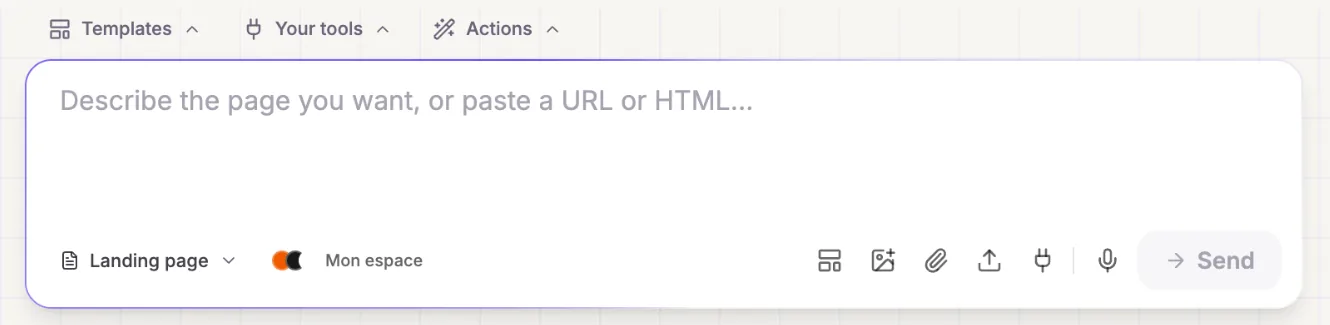
Paste your HTML into the « Describe the page you want, or paste a URL or HTML… » field, or use the upload icon in the bar to drop in an .html file.
- 3
Check the preview
Make sure the images show up. If they're on your computer, add them to the page's files (« Assets ») first.
- 4
Publish
Send, check, then publish. The page is live on your workspace's free address, or on your domain if you've connected one.
Try it yourself
Every HTML Pub and Leadpages plan has a 7-day free trial, with all features.
Try Leadpages for 7 days ↗Affiliate link: it does not change the price for you.
Common mistakes
- Pasting a page that loads images or files still sitting on your computer.
- Sending a form to another service: HTML Pub then doesn't collect the responses.
Official sources
Get the next guides
New Leadpages, HTML Pub and Shopify guides by email, every two weeks. No spam, unsubscribe in one click.