How does Smart Traffic work in Leadpages?
A classic A/B test splits traffic evenly. Smart Traffic instead picks, for each visitor, the variant most likely to convert them. It's included from Leadpages Optimize.
The essentials in 30 seconds
- Prepare at least two variants
- Set the goal
- Turn on Smart Traffic
- Track the results
Avoid: Using it with near-identical variants: the AI has nothing to choose between.
See the details with screenshots ↓Step by step
Screenshots show the interface used in the original guide (Shopify in French, Leadpages in English). In your account, buttons appear in your language.
- 1
Prepare at least two variants
Create truly different versions: a different offer, angle or audience.
- 2
Set the goal
Form, click or purchase: Smart Traffic learns from this goal.
- 3
Turn on Smart Traffic
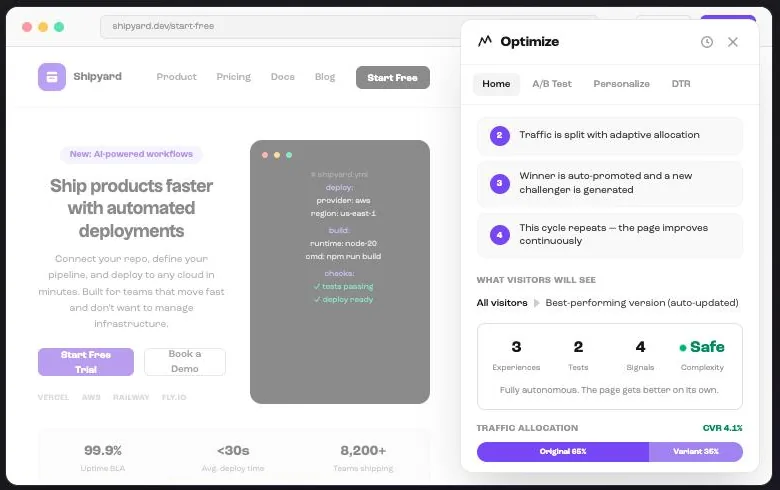
Click « Let AI optimize this for me ». Instead of a fixed split, the AI routes each visitor and gets better as visits add up.
- 4
Track the results
Compare the overall conversion rate before and after. Add a new variant when another one runs out of steam.
Try it yourself
Every HTML Pub and Leadpages plan has a 7-day free trial, with all features.
Try Leadpages for 7 days ↗Affiliate link: it does not change the price for you.
Common mistakes
- Using it with near-identical variants: the AI has nothing to choose between.
- Expecting results within a few days with little traffic.
Official sources
Get the next guides
New Leadpages, HTML Pub and Shopify guides by email, every two weeks. No spam, unsubscribe in one click.