How do I create a link-in-bio page with HTML Pub?
Instagram and TikTok allow only one link in your bio. A link-in-bio page gathers them all: store, video, sign-up, contact. With HTML Pub, it carries your name and your colors, and it can collect emails.
The essentials in 30 seconds
- Start from a link-in-bio template
- Add your photo and one sentence
- Add 3 to 5 buttons
- Add a sign-up form
- Check on your phone and publish
- Paste the link in your bio
Avoid: Adding ten buttons: visitors no longer know where to tap. Keep the essentials.
See the details with screenshots ↓Step by step
Screenshots show the interface used in the original guide (Shopify in French, Leadpages in English). In your account, buttons appear in your language.
- 1
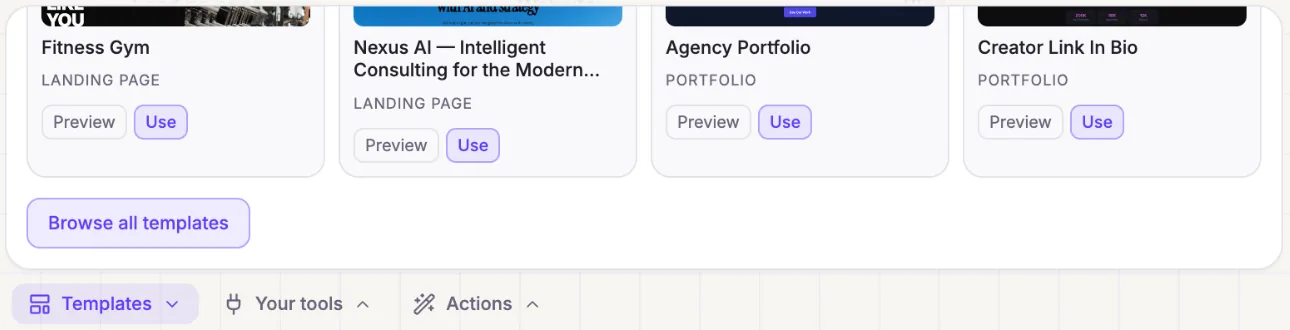
Start from a link-in-bio template
On the Create screen, click Templates, then Browse all templates. Pick a link-in-bio template, look at it with Preview, then click Use.
- 2
Add your photo and one sentence
At the top: your photo or logo, your name, and one sentence about what you offer. You can ask the assistant: "Replace the photo with my logo and write: handmade jewelry from Austin".
- 3
Add 3 to 5 buttons
One button per important link: your store, your latest video, your sign-up page, your contact page. Put the most important first, with an action label: "Shop now", not "Link 1".
- 4
Add a sign-up form
Ask the assistant to add an email field below the buttons. Answers are saved in HTML Pub: your followers become contacts you can find later.
- 5
Check on your phone and publish
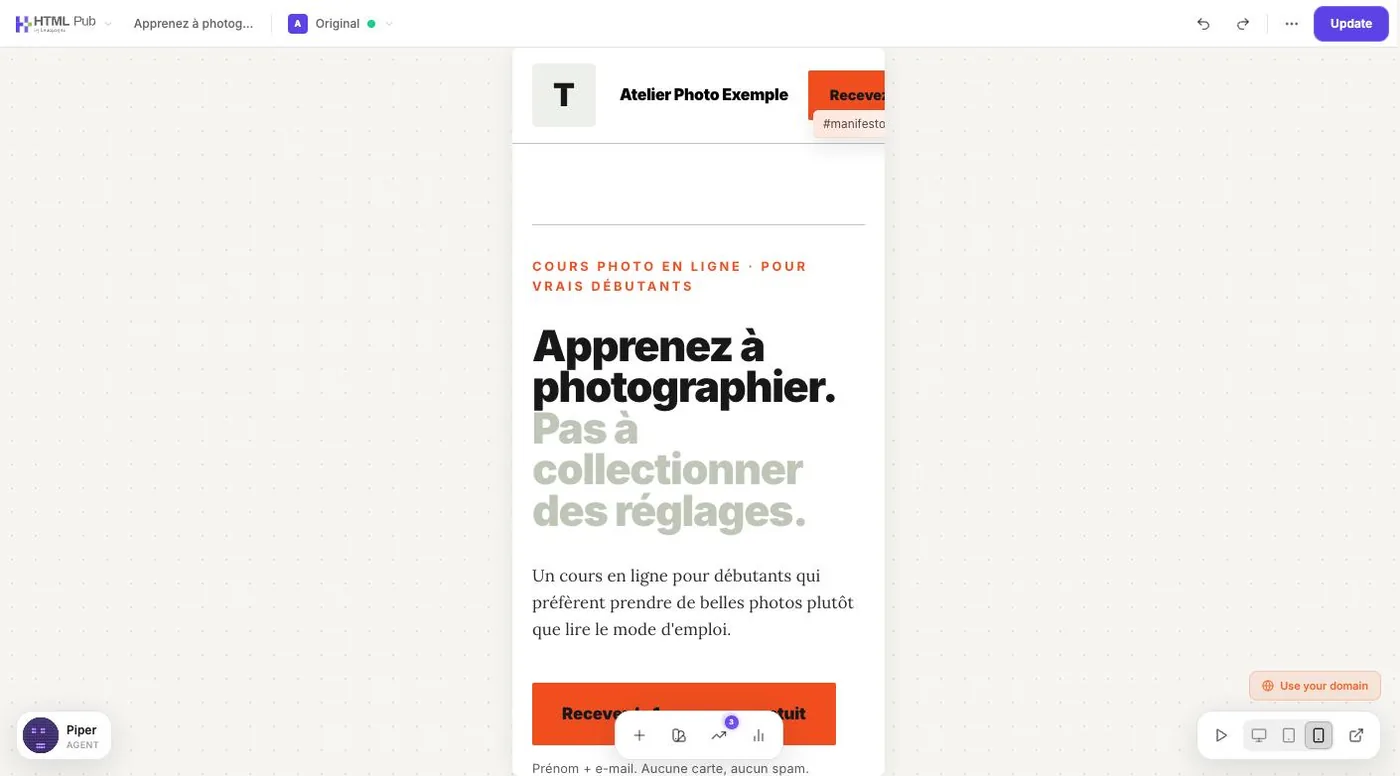
Almost every visitor comes from a phone. Click the mobile icon at the bottom right of the editor, make sure each button is easy to tap, then publish.
- 6
Paste the link in your bio
Pick a short address (your name, for example), copy it, and paste it into the Website or Link field of your Instagram or TikTok profile. Open it from the app to check.
Try it yourself
Every HTML Pub and Leadpages plan has a 7-day free trial, with all features.
Try Leadpages for 7 days ↗Affiliate link: it does not change the price for you.
Common mistakes
- Adding ten buttons: visitors no longer know where to tap. Keep the essentials.
- Forgetting to update the page: a button to an expired sale hurts trust.
- A long, complicated address: it gets cut off or mistyped.
Official sources
Get the next guides
New Leadpages, HTML Pub and Shopify guides by email, every two weeks. No spam, unsubscribe in one click.