How to create a discount code on Shopify?
A discount code helps trigger a first order. On Shopify, it takes a few minutes to create and applies at checkout.
The essentials in 30 seconds
- Open « Discounts »
- Choose the discount type
- Write the code and its value
- Set the conditions
- Pick the dates and save
Avoid: Forgetting « Limit to one use per customer » on a welcome code: it can then be used on every order.
See the details with screenshots ↓Step by step
Screenshots show the interface used in the original guide (Shopify in French, Leadpages in English). In your account, buttons appear in your language.
- 1
Open « Discounts »
In the left menu, click « Discounts », then « Create discount ».
- 2
Choose the discount type
Four choices: « Amount off products », « Buy X get Y », « Amount off order » or « Free shipping ». For a welcome code, pick « Amount off order ».
- 3
Write the code and its value
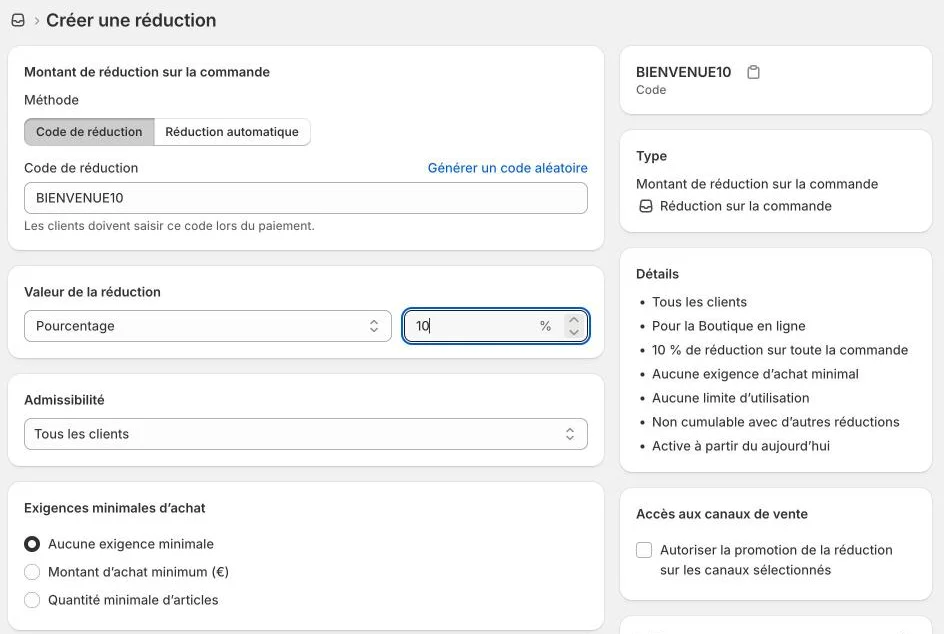
Keep the « Discount code » method, type a code that is easy to remember (for example WELCOME10), then choose « Percentage » or « Fixed amount » and the value. The summary on the right updates right away.
- 4
Set the conditions
« Eligibility »: all customers or only some. « Minimum purchase requirements »: a minimum amount or number of items. « Maximum discount uses »: limit the total number of uses, or one use per customer.
- 5
Pick the dates and save
Set a start date and, if you want, an end date. Click « Save »: the code shows up in the list of discounts.
Try it yourself
Shopify starts free, then has a discounted launch offer. You can set everything up before paying.
Try Shopify ↗Affiliate link: it does not change the price for you.
Common mistakes
- Forgetting « Limit to one use per customer » on a welcome code: it can then be used on every order.
- Sharing the code without testing it in a test order.
Official sources
Get the next guides
New Leadpages, HTML Pub and Shopify guides by email, every two weeks. No spam, unsubscribe in one click.