How do you link HTML Pub or Leadpages to Shopify?
Your HTML Pub or Leadpages pages bring in visitors, Shopify takes the payments. There are two ways to link them: the Shopify connector, and buttons that lead to Shopify checkout.
The essentials in 30 seconds
- Open « Connectors »
- Enter your store address
- Add a button to Shopify
- Or paste a Shopify Buy Button
- Test the whole path
Avoid: Thinking Leadpages counts Shopify sales: its stats stop at the button click.
See the details with screenshots ↓Step by step
Screenshots show the interface used in the original guide (Shopify in French, Leadpages in English). In your account, buttons appear in your language.
- 1
Open « Connectors »
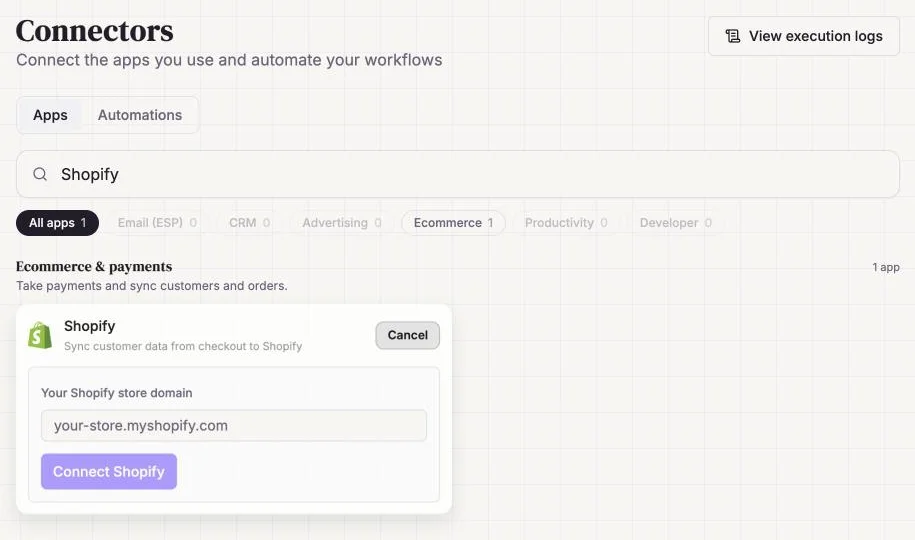
In your HTML Pub workspace menu, click « Connectors » and type « Shopify » in the search. The Shopify card sends customer data from your HTML Pub checkout to Shopify.
- 2
Enter your store address
Click « Connect », enter your store's .myshopify.com address, then click « Connect Shopify ». Then approve the authorization in Shopify.
- 3
Add a button to Shopify
To sell a product from a page, add a button and, in its click action, choose an external link: paste the product address or a Shopify checkout link.
- 4
Or paste a Shopify Buy Button
In Shopify, add the « Buy Button » sales channel, create a button for a product, copy its HTML code and paste it into an HTML block on your page.
- 5
Test the whole path
Publish the page, click the button and go all the way to checkout to check that the right product opens.
Try it yourself
Shopify starts free, then has a discounted launch offer. You can set everything up before paying.
Try Shopify ↗Affiliate link: it does not change the price for you.
Common mistakes
- Thinking Leadpages counts Shopify sales: its stats stop at the button click.
- Entering your own domain name instead of the .myshopify.com address in the connector.
Official sources
Get the next guides
New Leadpages, HTML Pub and Shopify guides by email, every two weeks. No spam, unsubscribe in one click.