How do you change or cancel your Leadpages plan?
You can change plans or cancel at any time, with no penalty. Only the account owner can manage billing.
The essentials in 30 seconds
- Open billing
- Change your plan
- Or cancel
- Know what happens to your pages
Avoid: Downgrading without checking the limits: number of pages, domains or blogs included.
See the details with screenshots ↓Step by step
Screenshots show the interface used in the original guide (Shopify in French, Leadpages in English). In your account, buttons appear in your language.
- 1
Open billing
At the bottom of the left menu, click your workspace name, then « Billing ». Sign in with the owner account if the link doesn't appear.
- 2
Change your plan
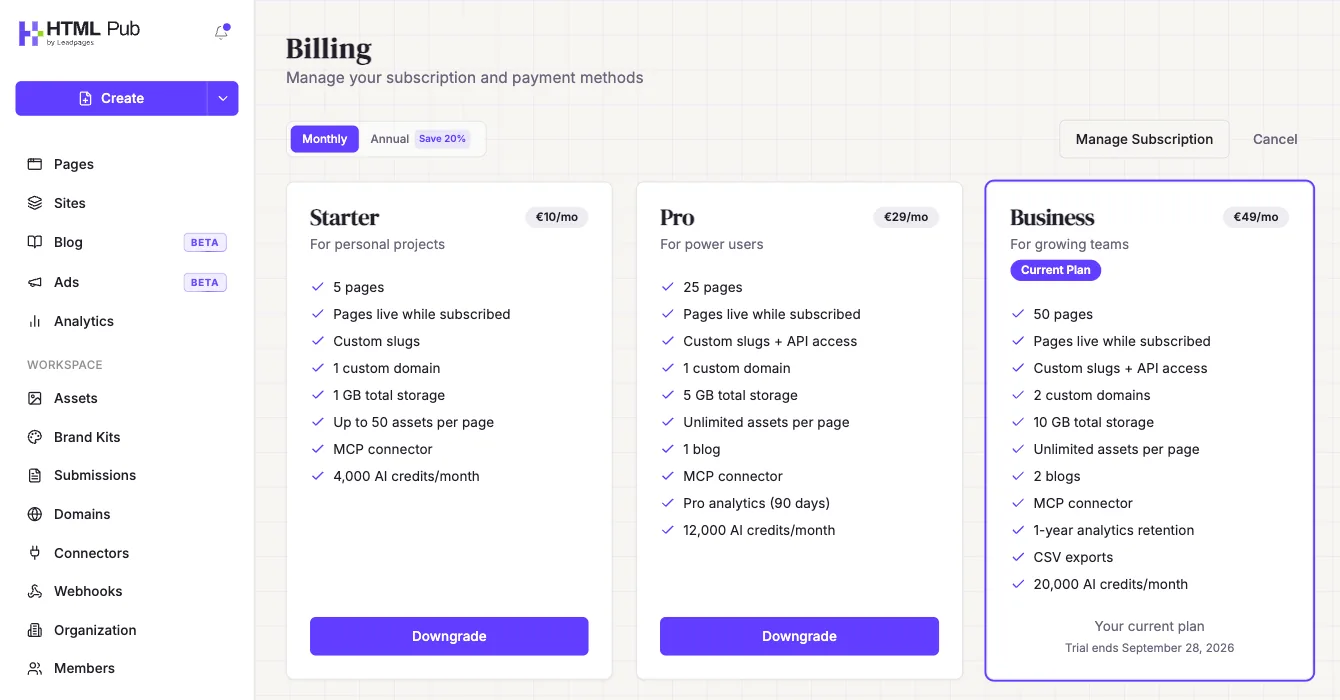
The page shows every plan, with « Current Plan » on yours. Pick a higher or lower plan. The change takes effect at the next billing cycle.
- 3
Or cancel
Still in « Billing », use « Manage Subscription » or « Cancel ». During a trial, the end date is shown under your plan: cancel before it so you aren't charged.
- 4
Know what happens to your pages
If your subscription stops, published pages go back to draft. They aren't lost: you can publish them again when you reactivate a subscription.
Try it yourself
Every HTML Pub and Leadpages plan has a 7-day free trial, with all features.
Try Leadpages for 7 days ↗Affiliate link: it does not change the price for you.
Common mistakes
- Downgrading without checking the limits: number of pages, domains or blogs included.
- Canceling while ads are still sending traffic to your pages.
Official sources
Get the next guides
New Leadpages, HTML Pub and Shopify guides by email, every two weeks. No spam, unsubscribe in one click.